Per-camera Video Insight licensing adds up quickly, especially if you are managing multiple sites. That's also why most IT directors start looking for the right alternatives. Add in NVRs that are due for a hardware refresh, or a Video Insight server that's aging past its useful life, and the math on renewing versus switching starts to shift.
If you're an IT director looking to migrate from Panasonic i-PRO to Coram without scrapping every camera, you can. Coram connects to your existing ONVIF-compliant cameras, retires the on-prem Video Insight server and i-PRO NVRs, and replaces that recording layer with a Coram NVR at each site, with cloud-based management and AI on top.
What Actually Carries Over from Your Panasonic i-PRO Stack
Your ONVIF-compliant i-PRO cameras carry over to Coram. That's the core of the migration, and it's what makes a phased move possible instead of a full camera swap. What doesn't automatically carry over is anything built specifically for the i-PRO ecosystem. Some Active Guard edge-AI apps and i-PRO-specific integrations are tied to that ecosystem and won't function the same way once you're off Video Insight.
Before you plan around keeping a specific analytics feature, check whether it's running on standard ONVIF or on an i-PRO-proprietary layer. If it's the latter, expect to replace it with Coram's native cloud AI rather than carry it over.
What Survives vs. What Gets Retired
Survives: ONVIF/IP cameras, existing cabling, and PoE infrastructure. This is the physical investment you keep.
Retires: The on-prem Video Insight server, i-PRO NVRs and recorders, and per-camera Video Insight licenses. Recording doesn't move off-site entirely, though. A Coram Point appliance takes over the recorder's job at each location, storing video locally, while the cloud handles management, alerting, search, and multi-site viewing. So the migration swaps your recording hardware rather than eliminating it, and this is the same pattern that applies when replacing a VMS without replacing the cameras.
What to Evaluate Before You Migrate
Before starting the migration, check these six things:
- ONVIF compliance of your existing i-PRO cameras, model by model.
- Coram Point sizing and count per site, based on camera count and how much retention you need. This is purchased hardware, not a reuse of your Video Insight server, so it belongs in the budget from the start.
- Retention requirement per site, since standard retention runs 30 to 90 days with longer windows available on request.
- Network and bandwidth posture, since high-resolution recording stays on the LAN while management traffic goes to the cloud.
- Identity and SSO integration requirements for your team.
- Video Insight license and maintenance renewal dates, to avoid double-paying during transition.
Answering these honestly before you start is what keeps a phased cutover clean instead of chaotic.
Quick Comparison Table
Before getting into the migration steps, here's how i-PRO/Video Insight and Coram compare on the basics.
The Migration Path, Step by Step
The Panasonic i-PRO migration process works in five stages: audit, reusability check, parallel run, phased cutover, decommission. Here's a step-by-step breakdown of each stage for easy reference.
1. Audit the Existing Deployment
Pull a full inventory of camera model and firmware version for every unit, support status per model, Video Insight license server, and every contract or maintenance renewal date. Some older i-PRO cameras need a firmware update before ONVIF discovery works. Flag those separately.
2. Identify What's Reusable
Run each camera against three checks: does it support ONVIF Profile S or T, is the firmware current enough to expose that support, and does it depend on an Active Guard edge-AI app or i-PRO-specific integration you actually use day to day.
Cameras that clear all three are straightforward adopts. Cameras tied to Active Guard features you rely on need a decision up front: replace the workflow with Coram's native AI, or retire that camera at end of life instead of migrating it.
Your camera count and retention target from step one also determine Coram Point sizing per site, so settle that before the parallel run.
3. Parallel-Run, Don't Rip-and-Replace
Pick one site or one building, install a Coram Point, and connect it to a subset of that site's ONVIF cameras, enough to be representative, not the whole site. Leave Video Insight running on those same cameras where your NVR setup allows split-stream or dual-recording.
Over one to two weeks, check three things: video quality and latency compared to Video Insight, whether Coram's AI alerts are catching what you need without false-positive noise, and how remote access behaves for your team day to day. Don't move to phase four until this validation period is clean.
4. Phased Cutover
Sequence sites by risk, not convenience. Start with your smallest or lowest-risk site so your team builds cutover experience before tackling anything critical. For each site, cut over cameras first, confirm footage and alerts are flowing correctly for 24-48 hours, then decommission the local Video Insight server and NVRs.
5. Decommission
Once a site is fully cut over, physically decommission the retired NVRs and server hardware, and reduce your Video Insight per-camera license count to match the remaining stack. Cross-check your final cutover date against your Video Insight maintenance renewal. Export any Video Insight footage you need to keep before those recorders come offline.
How long it takes: A single-site deployment with a straightforward ONVIF-compliant camera fleet typically runs audit-to-decommission in 3-6 weeks. A multi-site deployment usually takes 2-4 months, depending on how many sites need their own parallel-run validation window rather than by camera count alone.
Where Coram Fits in the Migration
Coram ingests your existing ONVIF i-PRO cameras and replaces the Video Insight server and i-PRO NVR layer with a single Coram Point appliance per site. Recording, storage, and AI processing run on that appliance locally, while management, search, alerting, and multi-site viewing run in the cloud. There's no Video Insight server to patch and no VPN to maintain for remote access, and the appliance itself is vendor-managed rather than something your team keeps updated.
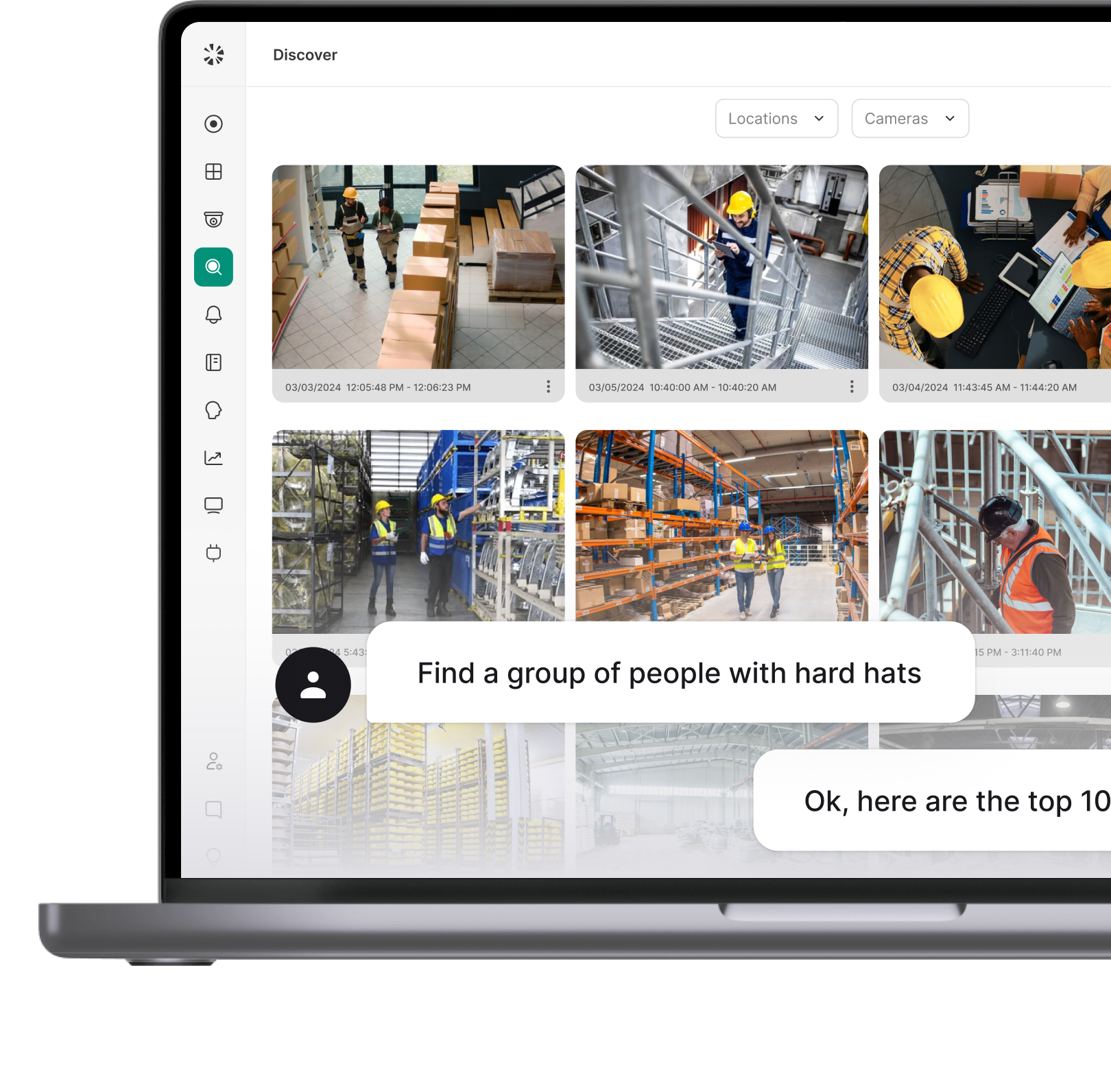
It also runs native AI analytics across every camera in the deployment, rather than requiring per-camera Active Guard configuration. Access control runs on the same platform, so you're not managing a separate access system alongside your VMS.
Best for: IT directors modernizing an on-prem i-PRO/Video Insight deployment onto a single cloud-managed platform, while keeping the ONVIF camera investment already in place.
How to Decide if Now Is the Right Time to Migrate
Not every deployment needs to move immediately. A few scenarios are good indicators that it's worth starting the process now rather than waiting for the next renewal cycle:
- Your NVRs or Video Insight server are coming up for a hardware refresh anyway.
- Your Video Insight version is reaching end of life, or you're facing a forced upgrade.
- Multi-site remote access has become a recurring pain point for your team.
- Your Video Insight maintenance renewal is close enough that you'd be committing to another term without reassessing the stack.
- You're consolidating identity and SSO across systems and Video Insight's local accounts don't fit.
- You want cross-camera AI search and alerts that per-camera Active Guard configs can't give you.
If none of these apply yet, migrating now may just mean paying for two systems during overlap without a clear driver.
If you're mid-contract on Video Insight maintenance with two or more years left, you can still start now and sequence around it. Run the audit and parallel-run phases first, since neither requires retiring anything. Time the actual cutover and license wind-down to land near your renewal date, so you're not paying for Video Insight maintenance you've already moved off of.
What's Next
Whatever brought you here, whether it's aging NVRs, licensing creep, or wanting AI without a camera overhaul, start with an audit of your camera inventory for ONVIF support and check your Video Insight maintenance dates. If you'd rather talk through the specifics first, book a demo with Coram to see how it applies to your deployment before you commit to a plan.




.png)