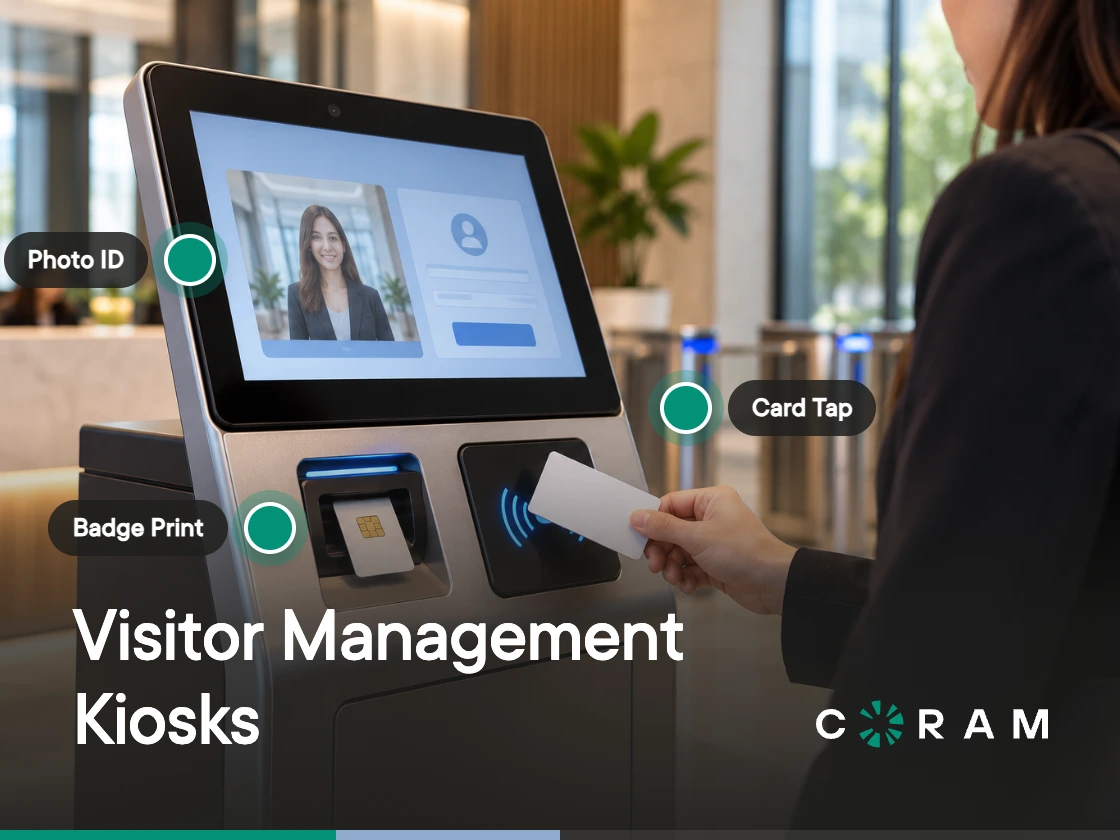
Somebody has decided the lobby needs a check-in tablet, and the four demos you sat through looked identical. A visitor management kiosk is only as good as five decisions made before it ships, and four of them are about how it fits into the building rather than which software runs on the screen.
The software layer is close to solved. Most visitor management kiosks handle the same basic tasks: collecting visitor information, capturing photos, printing badges, and notifying hosts. What separates a kiosk that produces a record anybody trusts from one the front desk quietly works around is power, network, flow length, where the notification lands, and what the check-in record connects to.
Decision 1: Power and Network Before Anything Else
Two failures take a lobby kiosk offline, and both get decided at install rather than in the software. The tablet loses power, or it loses the network. Everything else is a support ticket; these two are a dark screen in front of a waiting guest.
Heat is the quiet one. A tablet held on permanent wall power inside a sealed enclosure runs warm all day, every day, and sustained heat wears batteries faster: a year of it can show up as a swollen battery and a screen lifting at one corner. An enclosure with airflow handles most of it. Power management handles the rest, and it should follow the tablet maker's guidance for devices that stay plugged in. If that guidance calls for time off charge, a switched or scheduled power feed costs nothing beyond deciding it before the electrician leaves the building.
Network is the loud one. A visitor management kiosk sitting on the guest SSID inherits every property of guest Wi-Fi: a captive portal that expires, a session that needs re-accepting every twelve hours, a DHCP lease that moves. Certificate-based authentication carries its own version of the same problem. A tablet on 802.1X runs quietly until the certificate expires or the network profile changes, and since nobody signs into a kiosk the way they sign into a laptop, nobody sees the prompt that would have warned them. Put the device on a managed network with a reserved address, keep its certificate on the same renewal calendar as everything else on that network, and give it a wired path where the hardware supports one.
Then there is the status nobody checks until it matters. Coram Guest Management reports online state from the app itself: the iPad has to have the Guest Management app open and on screen to show as online, and locking the iPad or switching to another app makes the device appear offline in the web app. That makes a single-app lock an operational requirement. iOS Guided Access or an MDM single-app profile both do the job.
Decision 2: How Many Screens a Guest Has to Tap Through
Every field the security team adds is a field the front desk later skips. That trade is the entire decision, and it gets made in a configuration screen months before anyone stands in a queue behind a contractor typing a company name with one finger.
Name and photo are close to free. An ID scan adds a step, a legal agreement adds a read, and consent adds a tap that stays whether you want it or not. Each one is defensible on its own. Stacked together at 8:55 on a Monday, they produce the outcome every busy lobby reaches eventually: someone checks six people in under one name to clear the line, and the record stops meaning anything.
Decide field by field, and make someone say out loud what each field is for and who reads it afterward. In Coram Guest Management, you can configure which fields are required, enable blacklist and background check screening, capture signed legal agreements, and customize branding to match your organization. Two things stay fixed: name is always required, and the consent step is always mandatory and cannot be disabled. Build outward from those two, and switch on a field only when a person can name the question it answers.
Decision 3: Where the Host Notification Actually Lands
The kiosk's job ends the moment the host knows someone is waiting, which makes the notification channel the decision most deployments get wrong quietly. The guest finishes check-in, the screen confirms the host has been notified, and the host is two floors up in a conference room with a laptop lid down.
Email and SMS are the two channels that reach a person who is away from their desk. A message in a chat tool reaches someone who is already in a meeting and reading nothing. Coram Guest Management notifies the host by email, SMS, or both when a guest checks in, set per host or in bulk by an admin.
The host directory is the other half of this decision. A guest picks a name from a list, and a stale list means they pick the wrong one: a colleague who left in March, or one of the three Daniels who has no idea a visitor is downstairs. In Coram Guest Management, the guest picks from the Hosts list your admins maintain, which can be limited to specific locations and imported or exported by CSV, and people who join the organization later are not added to it automatically. Whatever the product, tie that list to the directory the organization already maintains and review it on every onboarding and offboarding cycle.
Then decide what happens when nobody answers. The fallback that works is a named person, the office manager or whoever sits closest to the door, with a stated wait time before they step in. A second automated notification into the same silence is a policy that reads well on paper and changes nothing in the lobby.
Decision 4: Who Is Allowed to Skip the Kiosk
A visitor sign-in kiosk records the people who choose to use it. Almost every building has a population that walks straight past, and in many buildings that population is larger than the one tapping the screen.
Write the exemption list before you buy, because the exemptions decide whether you are installing a security control or a courtesy:
- Delivery and courier drivers, who are back in the van inside ninety seconds.
- Trades and maintenance crews, who come in through the loading dock anyway.
- Regular contractors, who stopped being guests months ago and hold a badge from somewhere.
- Parents and caregivers at pickup, arriving forty at a time inside a ten-minute window.
- Candidates and interview panels, where the host is already in the room and the desk expects them by name.
Each line is a decision: capture that group another way, issue them a permanent credential, or accept that they sit outside the log and write that down. The failure mode is leaving it undecided, then treating the guest log as a complete record of who was in the building on a given afternoon.
State the limit plainly. A kiosk with no physical barrier behind it stops nobody, and that holds for every product in the category. A printed visitor badge is a visual marker that a staff member can read across a hallway. Opening a door takes a credential issued through badge access control, and a badge that came out of a label printer carries no credential at all.
Decision 5: What the Check-In Record Connects To
A visitor management kiosk that keeps its check-in record in its own tool answers one question: did this person sign in. That is the question nobody asks after an incident.
The question a security team asks is where the visitor went. A laptop is missing from the third floor. A fire door was propped at 2:40 p.m. A staff member reports someone wearing a visitor badge in a restricted corridor. Answering any of those means putting a name and a face alongside camera footage from a specific window of time.
Run the test before you sign anything. Pick a visit from last week, then time how long it takes to produce three things: the visitor's photo, their check-in time, and footage of that person inside the building. An hour is a fail. Ten minutes on a quiet Tuesday with nobody waiting becomes an hour on the day it matters.
Two things make that test fail, and both are architectural. The first is separate logins: the kiosk keeps the check-in record in its own dashboard while the footage lives in another, so connecting them falls to a person holding a face in their head while scrubbing through timelines. The second is an export-and-match workflow, where the documented process is to export the guest log and correlate by timestamp. That process lives in a runbook and gets performed almost never, because it needs thirty calm minutes and an incident supplies neither.
This is the question worth carrying into vendor conversations, and it separates cloud-based visitor management systems from one another far more than the check-in flow does. The screens all look alike in a demo; what sits behind them decides whether the record is usable.
The Visitor Management Kiosk Hardware You Actually Have to Buy
Five components, and the decision on each is narrower than a product page suggests. A visitor check-in kiosk is a tablet, something to hold it, power, a network path, and a printer if the building issues badges. Most kiosks on the market come down to those five parts.
Two more things belong on the order, and neither appears on a hardware spec sheet:
- Label stock in the exact size the app prints, plus a spare roll kept in the desk drawer. Badge labels are the first consumable to run out and the only one a guest sees run out.
- A named owner for the device. Facilities mounts it, IT puts it on the network, and the front desk is the one standing beside it at 8:55 on a Monday when the screen is blank.
What a Kiosk Cannot Do, No Matter Who Sells It
Vendors sell these as a visitor management and security kiosk, and the second word does most of the work in a demo. Five expectations turn up in almost every evaluation, and each one describes a job the kiosk hands to something else in the building. Reading this table before the demo saves a procurement cycle.
How Coram Guest Management Handles the Five Decisions
Coram Guest Management is iPad-based visitor check-in that runs inside Coram's physical security platform, alongside Video Security, Access Control, Emergency Management, and Video Alarms. That shared platform is what makes the fifth decision answerable instead of aspirational.
The hardware list is short. The iPad needs iPadOS 26.0 or later, and badges print to a supported Brother QL network label printer (QL-710W, QL-720NW, QL-810W, QL-820NWB, QL-1110NWB or QL-1115NWB) on 62 mm continuous labels, with no printer software to install and no Bluetooth or USB pairing. The iPad finds the printer over the local network, so the two have to sit on the same one. The single-app lock from the first decision goes on the same install checklist as the power run.
Flow length and host notification work as described in Decisions 2 and 3, and check-in keeps running through an internet outage, with the limits covered in the FAQs below. On the population that walks past, the same limits apply here as anywhere: Coram guest check-in does not unlock a door, it does not detect a second person entering on one check-in, and the check-in screens are English only today. Coram covers that second gap at the door: where Coram Access Control and a camera cover the same entry, it raises a tailgating alert when more people walk through than credentials were presented.
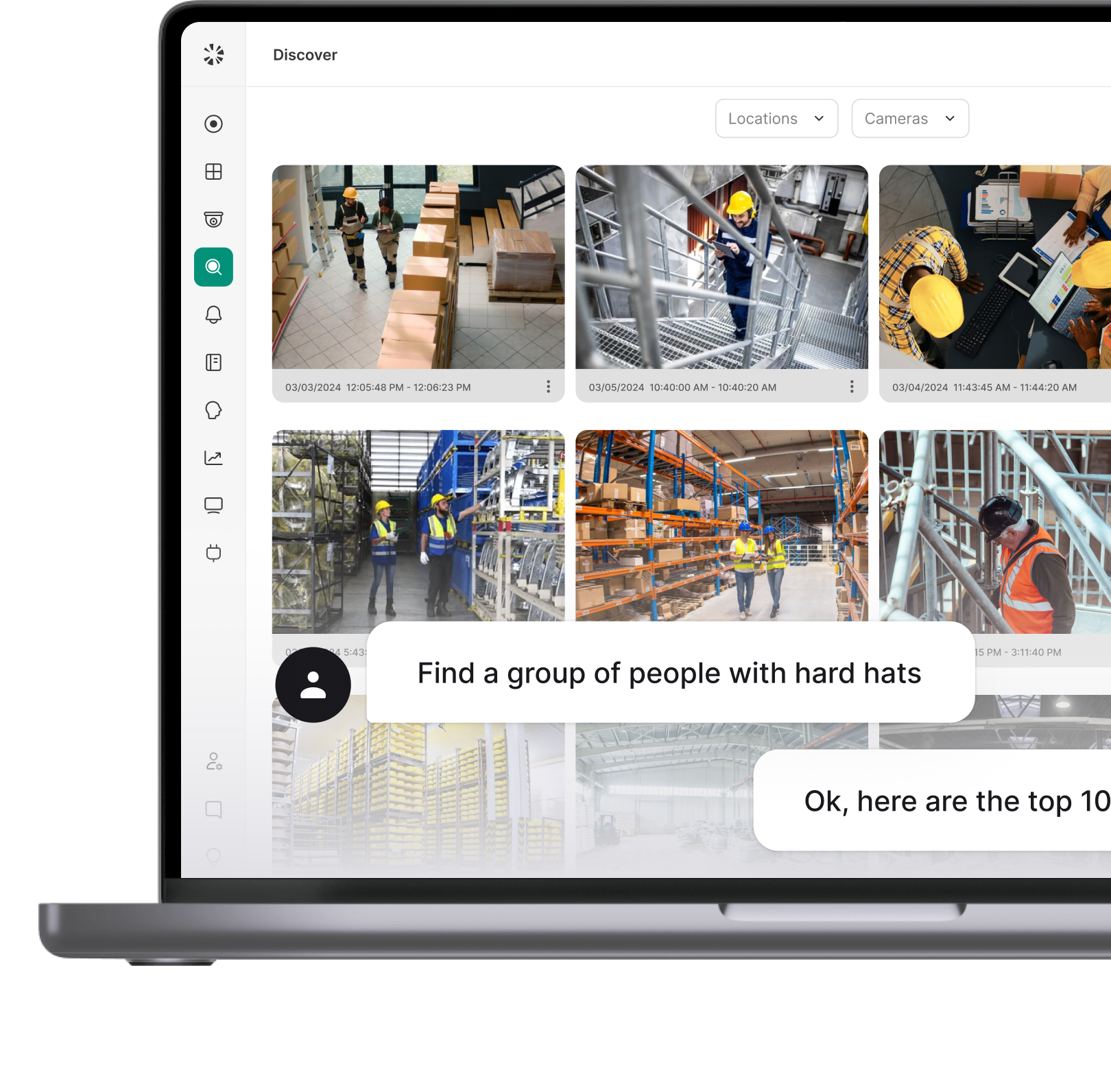
The fifth decision is where the platform earns its place. Guest Face Matching connects Guest Management to your cameras: when a guest takes a photo during check-in, Coram matches that photo against face detections from your cameras, so you can see where the guest appeared on your premises and follow their movement from the moment they arrived.
Coram checks your cameras for the guest from 12 hours before to 12 hours after their check-in time. Guest Face Matching runs on Coram's facial recognition, which is off by default and switched on per organization under Settings, then Controls, and it needs the guest to have taken a photo at check-in.
The guest log search matches against the guest's name, email address, phone number, and company, as well as the host's name, so the last-week test starts with a search rather than an export. Run that test against whatever is in your building today, and take the result into the next vendor call. More detail on the product line sits on Coram Guest Management.
Before You Order the iPad
Four of the five decisions are about how the kiosk fits into the building: where the power comes from, which network the device sits on, how long the queue gets, and who is allowed to walk past. The fifth is about the platform behind the screen, and it is the only one you cannot fix after installation with a screwdriver and an afternoon.
Walk your own lobby with those five questions in hand before the next demo. The hardware is the easy part of a visitor management kiosk, and it is the part most evaluations spend the most time on.




.png)